Return to Intelligence Bank
Intelligence Brief
ID: HOW-TO-USE-CALENDAR-IN-JEEVANAXIS

How to Use the Calendar for Structured Time Planning

Use drag-and-drop task scheduling, overcommitment detection, Indian holiday integration, and Focus Block protection to convert your priority list into protected, executable time.

Operation ZonePLAN MODULE
Read Duration8 MIN
CALENDARTIME-BLOCKINGSCHEDULINGPANCHANG

Section Protocol
title: "How to Use the Calendar for Structured Time Planning" description: "The JeevanAxis Calendar is not just an event scheduler — it is a time-blocking engine that overlays your tasks on a visual time grid, detects overcommitment before the week starts, and integrates Indian holidays and Panchang festivals so your plans honour both your ambitions and your cultural context." category: "Plan Module" publishedAt: "2026-05-29" readingTime: "22 min" tags: ["calendar", "time-blocking", "scheduling", "panchang", "focus-blocks", "weekly-review"]

Operational Directive

Section Protocol
The Difference Between Scheduling and Time-Blocking

Before you can use the JeevanAxis Calendar effectively, you need to understand why it is built around a philosophy called time-blocking rather than simple scheduling.

TACScheduling: The Reactive Approach

Conventional calendar use is reactive: you add meetings and appointments as they are confirmed, and the spaces between them become your "free time." Planning in this model is an act of fitting work into whatever is left over. The problem is that "whatever is left over" tends to fill with minor tasks, context-switching, reactive communication, and distraction. The important work — the project tasks connected to your goals — never gets protected time because it never gets any time at all.

TACTime-Blocking: The Proactive Approach

Time-blocking is the deliberate act of scheduling specific tasks into specific calendar slots before the day or week begins. You are not responding to demand — you are creating supply. By placing a two-hour block on Tuesday morning labelled "Write Case Study 3," you are making a commitment that has the same weight as a meeting with another person.

Research from productivity science consistently shows that implementation intentions — specific plans that answer "when, where, and how will I do this" — dramatically increase follow-through compared to simple goal setting. Time-blocking is the calendar expression of implementation intention.

TACHow JeevanAxis Implements This

The JeevanAxis Calendar combines a visual time grid with your active task queue. Tasks from your Plan Module appear in a side panel, and you can drag them onto time slots to schedule them. When a task is scheduled, it receives a calendar event that is visible in all calendar views and linked back to the task's completion status. When you mark the task done, the calendar event closes. When the event's time passes without the task being completed, the task surfaces in your overdue queue.

Section Protocol
Calendar Views: Day, Week, and Month

JeevanAxis offers three calendar views, each optimised for a different planning horizon.

TACDay View

The Day view shows a 24-hour time grid for a single day, divided into 30-minute slots. Scheduled tasks appear as coloured blocks. Focus blocks appear in a distinct shade with a lock icon. Indian holidays and Panchang events appear as header banners above the day grid, not as time blocks — they inform your planning without occupying time slots.

Best used for: Morning planning sessions. Before you start work, open the Day view and review what you have committed to. Add any last-minute tasks for the day. Adjust blocks if yesterday's incomplete work needs to be rescheduled.

TACWeek View

The Week view is the primary planning surface. It shows 7 days side by side, with time slots running vertically. This view gives you the full picture of your week — where your focus blocks are, when your meetings are, how much open time remains, and how the planned work distributes across the days.

Best used for: Sunday time-blocking sessions. This is where you convert your priority task list for the week into a scheduled time grid, block by block.

TACMonth View

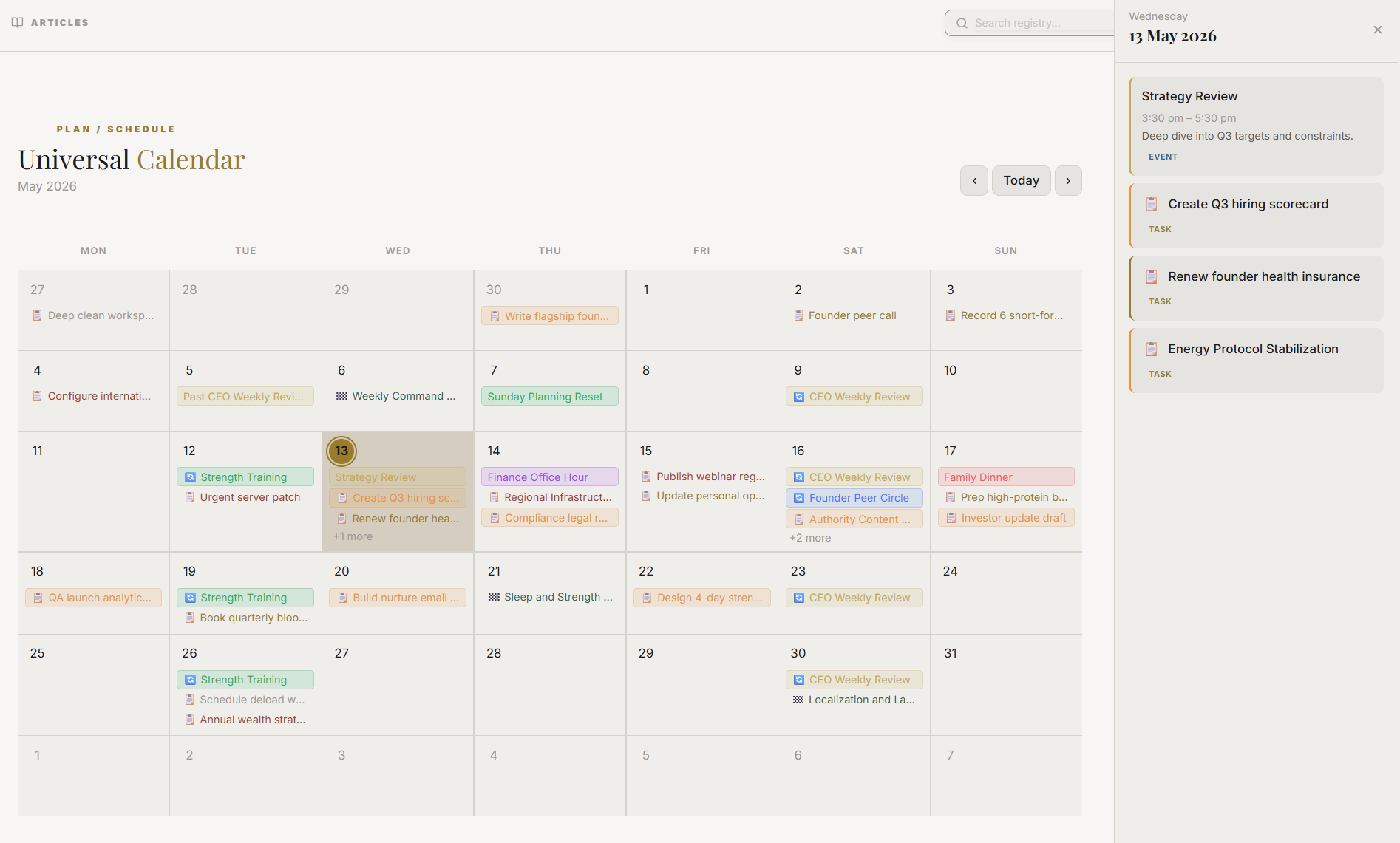
The Month view shows a traditional calendar grid with event titles appearing as compact blocks within each day cell. It does not show time slots — it shows what is happening, not when. Panchang festivals and Indian national holidays are prominently displayed as coloured banners in the Month view.

Best used for: Strategic planning. When you are planning a new project's milestones or setting a goal's target date, open the Month view to see the full context: upcoming festivals, travel, recurring commitments, and existing high-density weeks.

Tactical Logic Visualization
SYNTHESIZING DIAGRAM…

Section Protocol
Drag-and-Drop Task Scheduling

The most tactile feature of the JeevanAxis Calendar is the ability to drag tasks from your task queue onto the calendar grid. This action converts an intention into a scheduled commitment.

TACThe Task Queue Panel

In the Calendar view, a collapsible panel on the left side shows your unscheduled priority tasks — tasks marked High or Critical priority that have not yet been placed on the calendar. These are the tasks that most need protected time.

The panel groups tasks by:

  • Project — Tasks are grouped under their parent project so you can batch similar work
  • Due Date — Tasks with approaching due dates surface at the top
  • Energy Level — If you have tagged tasks with energy requirements (Deep Work, Light, Admin), you can filter and place them accordingly

TACScheduling a Task

  1. Locate the task in the left panel
  2. Click and hold the task card
  3. Drag it onto the desired time slot in the calendar grid
  4. Release to place it — a duration selector appears, letting you estimate how long this task will take (30 min, 1 hr, 2 hr, or custom)
  5. The task card moves from the unscheduled panel to the calendar block
  6. The calendar block shows the task title, project, and priority colour

TACRescheduling

If a task block needs to move, click and drag it within the calendar. You can move it to a different time on the same day or to a different day entirely. If you drag it back to the left panel, it returns to unscheduled status.

TACTask Completion from the Calendar

When you click on a scheduled task block, a popup appears with a Mark Complete button. Completing the task from the calendar marks it done in the Plan Module, updates linked project and milestone progress, and closes the calendar event.

Tactical Logic Visualization
SYNTHESIZING DIAGRAM…

Section Protocol
Creating Standalone Calendar Events

Not all calendar entries come from the task queue. Meetings, appointments, travel, personal commitments, and social events are standalone calendar events — they are not linked to tasks or projects, but they are critical for accurate overcommitment detection.

TACCreating a Calendar Event

  1. Click directly on any time slot in the Day or Week view
  2. A quick-entry dialog appears
  3. Type the event title, set start and end times
  4. Optionally add a description, location, or link
  5. Set the event type: Meeting, Appointment, Personal, Travel, or Other

TACWhy Event Type Matters

The event type affects the Overcommitment Detection system. JeevanAxis knows that a 2-hour meeting is cognitively demanding and follows it with a lower "available task capacity" calculation. A Personal event (dinner with family, for example) marks that time as completely unavailable for task scheduling, even if it falls during standard work hours.

TACRecurring Events

For recurring events — a daily stand-up, a weekly team meeting, a monthly one-on-one — select the recurrence pattern when creating the event: Daily, Weekly, Bi-weekly, Monthly, or Custom. Recurring events are treated as fixed commitments in the capacity calculations.

Note on recurring events and routines: Routines from the Grow Module can be surfaced in the calendar as recurring time blocks. If you have a morning routine defined in the Grow Module, it can appear in the Calendar as a grayed-out block that protects the morning hours from task scheduling during that window.

Section Protocol
Overcommitment Detection: Honest Signals Before the Week Starts

The Overcommitment Detection system is one of the most important features in JeevanAxis, because it addresses the most common planning failure: committing to more than is humanly possible and then being perpetually disappointed by your own underperformance.

TACHow It Works

JeevanAxis calculates your Available Capacity for each day based on:

  1. Defined work hours — Set in your Profile settings (e.g., 9 AM to 6 PM = 9 available hours)
  2. Fixed commitments — Calendar events that occupy those hours (meetings, appointments, personal events)
  3. Buffer time — JeevanAxis automatically reserves 20% of available time as buffer for transitions, breaks, and the unexpected
  4. Resulting available time — The time remaining after fixed commitments and buffer

Your Scheduled Load is the sum of the estimated durations of all task blocks you have placed on that day.

TACThe Detection Logic

When your Scheduled Load exceeds your Available Capacity, the system triggers a visual warning:

  • Yellow Warning — Scheduled Load is within 10% of Available Capacity. You are close to the edge; consider whether all tasks are truly essential for today.
  • Red Alert — Scheduled Load exceeds Available Capacity. You have scheduled more work than time permits. The calendar header turns red for that day.
Tactical Logic Visualization
SYNTHESIZING DIAGRAM…

TACResponding to Overcommitment Alerts

When you see a red alert, you have three honest options:

  1. Remove a task — Drag it back to the unscheduled panel and leave it for another day
  2. Move it to a less loaded day — Drag the block to another day in the Week view where capacity exists
  3. Split the task — If the task is large, split it into two smaller blocks, one today and one tomorrow

Do not resolve the alert by simply reducing the duration estimate on a task to make the numbers work. That is self-deception — the task still takes as long as it takes.

Section Protocol
Indian Holidays and Hindu Panchang Festival Integration

JeevanAxis is built for the Indian context, and its calendar reflects this with two distinct layers of cultural awareness.

TACNational Holidays

Indian national and public holidays are pre-loaded in the JeevanAxis calendar for the current and next year. On these days:

  • A coloured banner appears at the top of the day column
  • Available Capacity for the day is automatically adjusted if the holiday falls on a weekday (you can override this per holiday in settings)
  • Task scheduling is still permitted — some people choose to use holidays for personal projects — but the system surfaces the holiday context

TACHindu Panchang Integration

The Panchang is the traditional Indian almanac that tracks the lunar calendar and its associated events — Tithi (lunar day), Nakshatra (lunar mansion), Yoga, and Karana. JeevanAxis integrates a subset of Panchang data relevant for time planning:

  • Ekadashi — The 11th day of each lunar fortnight, observed as a fasting day by many Hindus. Marked in the Month and Week view.
  • Amavasya and Purnima — New Moon and Full Moon days, significant in many Hindu traditions for prayer, ancestor rites, and intention-setting.
  • Major Festivals — Diwali, Navratri, Holi, Ganesh Chaturthi, Janmashtami, Ugadi, Pongal, Onam, and other major festivals are marked with distinct banners across all views.
  • Auspicious and Inauspicious Days — Some users follow Rahu Kaal (a daily 90-minute period considered inauspicious for new beginnings). Rahu Kaal timings, calculated for your location, can be enabled in Calendar Settings.

TACUsing Panchang for Planning

The cultural calendar is not prescriptive — JeevanAxis does not tell you what to do on Ekadashi. It provides awareness so your planning can be conscious. Some users choose to schedule:

  • Deep project work on Purnima (full moon), which many traditions associate with heightened clarity
  • Reflection, journaling, and review on Amavasya (new moon), associated with introspection
  • Celebrations and community activities around major festivals, reducing task-heavy scheduling during festival clusters

This is personal philosophy, not system enforcement. The data is present; the interpretation is yours.

Section Protocol
Recurring Events and Their Relationship to Routines

Recurring calendar events and Routines (defined in the Grow Module) are related but distinct:

Recurring Calendar Events are scheduled at specific times on specific days. A 9 AM team standup that repeats every weekday is a recurring event. It occupies a fixed slot and is visible in the time grid.

Routines from the Grow Module are habit-based and tracked for consistency rather than for specific time slots. However, when you create a routine in the Grow Module and specify a typical time window (e.g., "Morning Routine: 6–7 AM"), that window can be surfaced in the Calendar as a soft block — it appears in the time grid as a pastel-colored zone, signalling that this time is typically reserved for the routine.

TACWhy the Distinction Matters

Routines are tracked by completion (did you do it today?), not by calendar occupancy. You do not schedule a routine — you track whether it happened. But by showing the routine's typical time window in the calendar, JeevanAxis prevents you from scheduling task blocks over your morning routine time, which is the most common way people accidentally sabotage their own habits.

If you have a 6–7 AM morning routine visible as a soft block, and you try to drag a task into that slot, the system gently warns you that this is a routine window — you can still place the task there if you choose, but you will do so consciously.

Tactical Logic Visualization
SYNTHESIZING DIAGRAM…

Section Protocol
Focus Block Protection

A Focus Block is a time slot you designate as uninterruptible deep work time. It is the calendar equivalent of a "do not disturb" sign — and in JeevanAxis, it has functional weight, not just symbolic value.

TACCreating a Focus Block

  1. In the Day or Week view, right-click on a time slot (or long-press on mobile)
  2. Select Create Focus Block
  3. Set the start time, end time, and optionally a label (e.g., "Deep Work: Article Writing")
  4. Choose a protection level: Standard or Deep

Standard Focus Block — Notifications from JeevanAxis are batched until the block ends. The block is visible to others if you have shared your calendar.

Deep Focus Block — All in-app notifications are silenced. The block is marked with a lock icon in the calendar and cannot be overlapped by scheduled tasks from the drag-and-drop panel.

TACTask Blocks Inside Focus Blocks

When you schedule task blocks inside a Focus Block window, the system treats those tasks as having highest execution priority for that period. The Focus Block wrapper provides the environmental protection; the task blocks inside it provide the directional intent.

TACHow Many Focus Blocks per Week

Research suggests that most knowledge workers are capable of 3–5 hours of genuine deep focus per day. JeevanAxis recommends creating 2–3 Focus Blocks per day, each lasting 90 minutes to 2 hours. This matches the ultradian rhythm — the natural 90-minute cycle of high cognitive performance that research has identified in human attention.

If you are creating Focus Blocks longer than 3 hours, reconsider. Longer blocks tend to drift toward pseudo-work — being present in the block but not actually producing. Shorter, denser blocks with a clear task inside them produce more.

Section Protocol
The Sunday Time-Blocking Session: Your Weekly War Room

The most impactful use of the JeevanAxis Calendar is the Sunday time-blocking session — a 45-to-60-minute planning ritual that converts the coming week from a blank space into a structured commitment.

TACThe Protocol

Step 1 — Review the Week Context (5 minutes) Open the Week view. Note all fixed events: meetings, appointments, recurring commitments. Check the Panchang panel for any festivals or significant days. Note any days with reduced capacity.

Step 2 — Calculate Available Capacity (3 minutes) For each day, look at the available capacity indicator. The system shows you green/yellow/red capacity status for the whole week in the header row. Identify your highest-capacity days — these get your most demanding project tasks.

Step 3 — Review Active Projects and Goals (10 minutes) Open the Plan Module in a split view. For each active project, identify the 1–3 tasks that most advance the current milestone. These are your priority tasks for the week — the work that, if done, moves the needle on something that matters.

Step 4 — Drag Priority Tasks to the Calendar (20 minutes) Starting with the highest-priority project, drag its selected tasks into your highest-capacity days. Assign realistic time estimates. Create Focus Blocks around the most demanding tasks. Continue for each active project until you have placed all your selected priority tasks.

Step 5 — Check for Overcommitment (5 minutes) Review the week view. Any red day headers signal overcommitment. Remove or defer tasks until all days are green or light yellow. Better to under-schedule and add during the week than to over-schedule and feel perpetually behind.

Step 6 — Review the Panchang and Cultural Calendar (3 minutes) Note any festivals, holidays, or significant Panchang days. If a major festival falls mid-week, reduce task load around it rather than creating the expectation of full productivity on a family celebration day.

Step 7 — Write Your Week Intention (5 minutes) In the Week Notes field (accessible from the Week view header), write 2–3 sentences about what you intend to accomplish this week. Not a task list — an intention. "This week I complete the first draft of the annual review and have a meaningful conversation with each team member." This intention becomes your orientation point for daily planning.

Tactical Logic Visualization
SYNTHESIZING DIAGRAM…

Section Protocol
The Daily Morning Review: 5 Minutes That Anchor the Day

The Sunday session creates the week's structure. The daily morning review confirms and adjusts it.

Each morning, spend 5 minutes in the Day view:

  1. Check today's calendar — What is scheduled? Does it still match your reality?
  2. Review yesterday's incomplete tasks — Did anything carry forward? Reschedule it now, deliberately
  3. Confirm today's Focus Blocks — Are they protected? Do they have tasks inside them?
  4. Note today's energy — If you feel low-energy or unwell, swap deep work tasks for lighter ones; do not attempt to power through and fail
  5. State a single "Most Important Task" — The one task that, if done today, makes the day a success. Write it in the Day Notes field

This 5-minute ritual transforms the calendar from a passive schedule into an active commitment. The difference between people who consistently execute and people who consistently plan-and-drift is often just this: the morning moment of re-commitment.

Common Traps

Weekly Time-Blocking Session Checklist

Section Protocol
Calendar as a Mirror of Your Values

At the end of any given week, your calendar is one of the most honest documents you possess. It shows — not what you intended, not what you hoped — but what you actually chose to do with your time.

A calendar that is full of meetings and sparse on project work tells you something about your operating mode. A calendar where personal commitments and Focus Blocks appear with the same consistency as meetings tells you something different. A calendar where Panchang festivals are acknowledged tells you something about what you value beyond productivity.

The JeevanAxis Calendar is designed to be a planning tool that, if used consistently, also becomes a values mirror. Look at your week's calendar at the end of Sunday's planning session and ask: if this is how I spend my time, who am I choosing to be?

The answer to that question is more useful than any productivity tip.

Tactical Logic Visualization
SYNTHESIZING DIAGRAM…

Reflection Prompts

"

Executive Summary

The JeevanAxis Calendar is a time-blocking engine first and an event scheduler second.

Its power lies in the discipline of making visible commitments: dragging tasks from your priority queue onto specific time slots, protecting those slots with Focus Blocks, and trusting the Overcommitment Detection system to tell you the truth about what is and is not possible in any given week.

The integration of Indian holidays and Panchang festivals is not ornamentation — it is the recognition that a complete planning system must honour both your professional ambitions and your cultural identity.

The Sunday time-blocking session is the ritual that makes the system work: 45–60 minutes of deliberate weekly planning that converts intention into structure.

The daily morning review, 5 minutes each morning, confirms and adjusts that structure.

Together, they create a week that is not just planned but defended — protected from the chaos of reactive living by the simple act of deciding in advance where your time and attention will go.

Intelligence Pipeline

Ready to Deploy Your Life OS?

Experience the full power of integrated intelligence. Stop managing apps and start operating your life.

Launch Command Center