How to Use Projects to Organize Complex Work
Create project containers with milestones, health status indicators, and goal linkage — turning scattered multi-step work into structured journeys with measurable progress.
Section Protocoltitle: "How to Use Projects to Organize Complex Work"
description: "Projects in JeevanAxis are multi-task containers with milestone tracking, health status indicators, and goal linkage — they transform scattered work into a structured journey with a visible destination."
category: "Plan Module"
publishedAt: "2026-05-29"
readingTime: "18 min"
tags: ["projects", "milestones", "kanban", "health-status", "planning"]
Operational Directive
Section ProtocolWhat Is a Project — And When to Create One
A task in JeevanAxis is a single, completable unit of action. You do it, you check it off. A project is different in nature: it is a container for many related tasks that together produce an outcome that no single task could achieve alone.
Think of writing a book. "Write Chapter 3" is a task. But the book itself — with its chapters, revision cycles, design, publishing steps — is a project. The project holds the intention, the timeline, and the health pulse. The tasks are the labour.
TACThe Decision Rule: Task or Project?
Use a task when:
- ▶The work is completable in a single focused session
- ▶There are no sub-outcomes that need to be tracked independently
- ▶Completion is binary — done or not done
- ▶No coordination with other people or time-periods is required
Create a project when:
- ▶The outcome requires 3 or more distinct steps across multiple days
- ▶You need to track intermediate milestones to know if you're on course
- ▶The work is linked to a broader life goal that needs measurable evidence
- ▶You want a health indicator that aggregates task completion signals
"A simple heuristic: if describing the work requires the word "and" more than twice, it is a project.
Section ProtocolProject Anatomy: The Six Pillars
Every project in JeevanAxis is built from six structural elements. Understanding each one gives you the mental model to use projects intentionally rather than instinctively.
TAC1. Title
The project title should name the outcome, not the process. Instead of "Website Work," write "Launch Portfolio Website v2." The title is what you will see in your weekly review — it must be immediately clear what completion looks like.
TAC2. Description
The description is your project brief. Write 2–3 sentences that describe why this project matters and what done looks like. This is your north star when you are deep in execution and losing sight of purpose.
TAC3. Goal Link
A project can be linked to one active Goal in JeevanAxis. This linkage means that when the project advances, the linked goal's progress ring advances correspondingly. If no goal link exists, the project is treated as a standalone initiative.
TAC4. Target Date
The target date is not a deadline in the punitive sense — it is a boundary that creates urgency and enables the Health Status system to give you honest signals. Projects without dates cannot trigger health alerts.
TAC5. Milestones
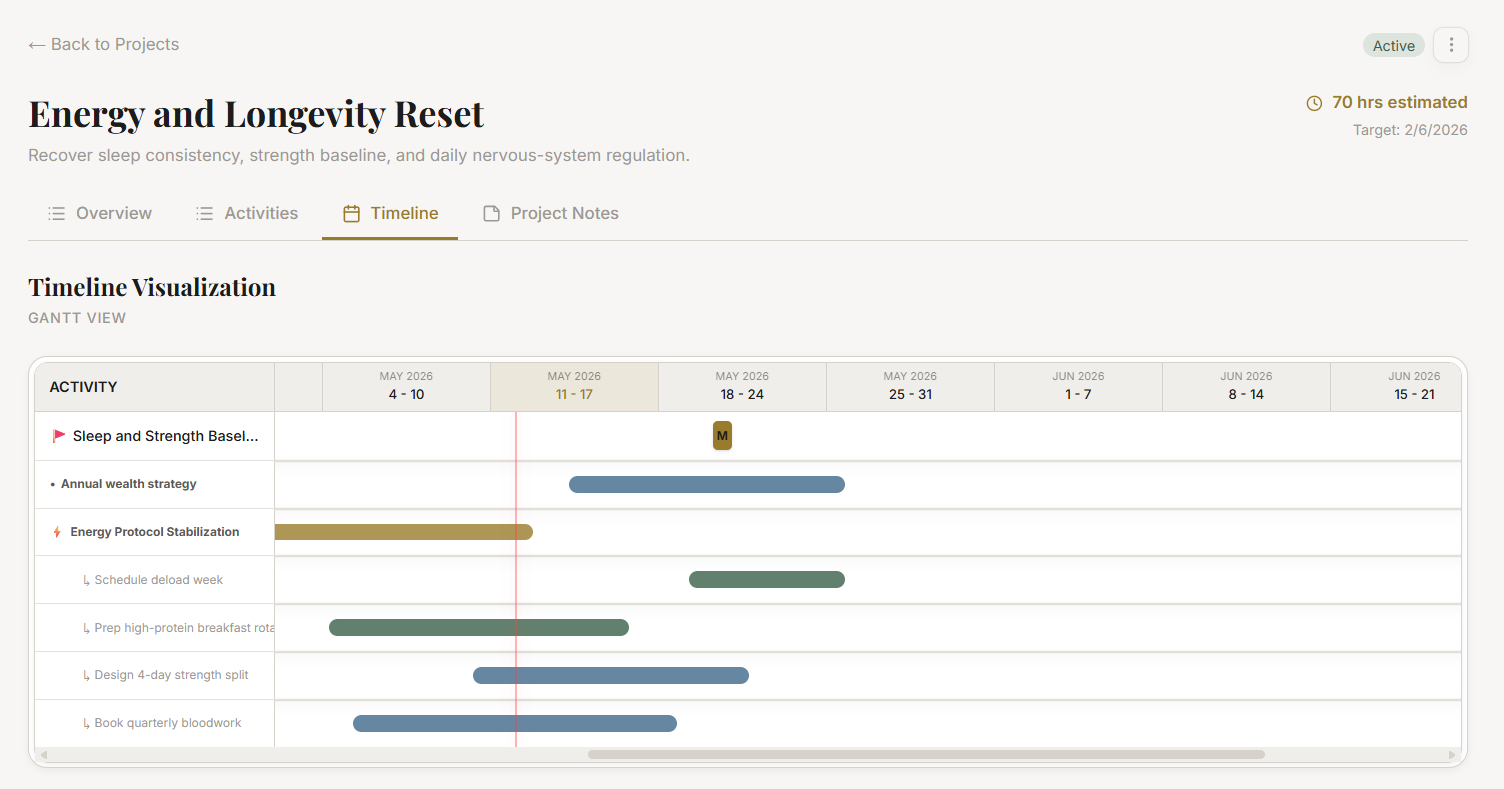
Milestones are the checkpoints within a project. They are intermediate outcomes — not individual tasks, but clusters of tasks that together produce a tangible sub-result. A 90-day project might have 3–4 milestones, each representing roughly 3 weeks of work.
TAC6. Status
Project status is one of: Active, Paused, Completed, or Archived. These are set manually, while the Health Status (described below) is calculated automatically.

Section ProtocolHow to Create a Project: Step by Step
Creating a project in JeevanAxis is a deliberate act. The interface prompts you to think before you commit.
Step 1 — Navigate to the Plan Module Open the side navigation and select Plan. The Plan Module displays your active goals, projects, and task queue in a unified view.
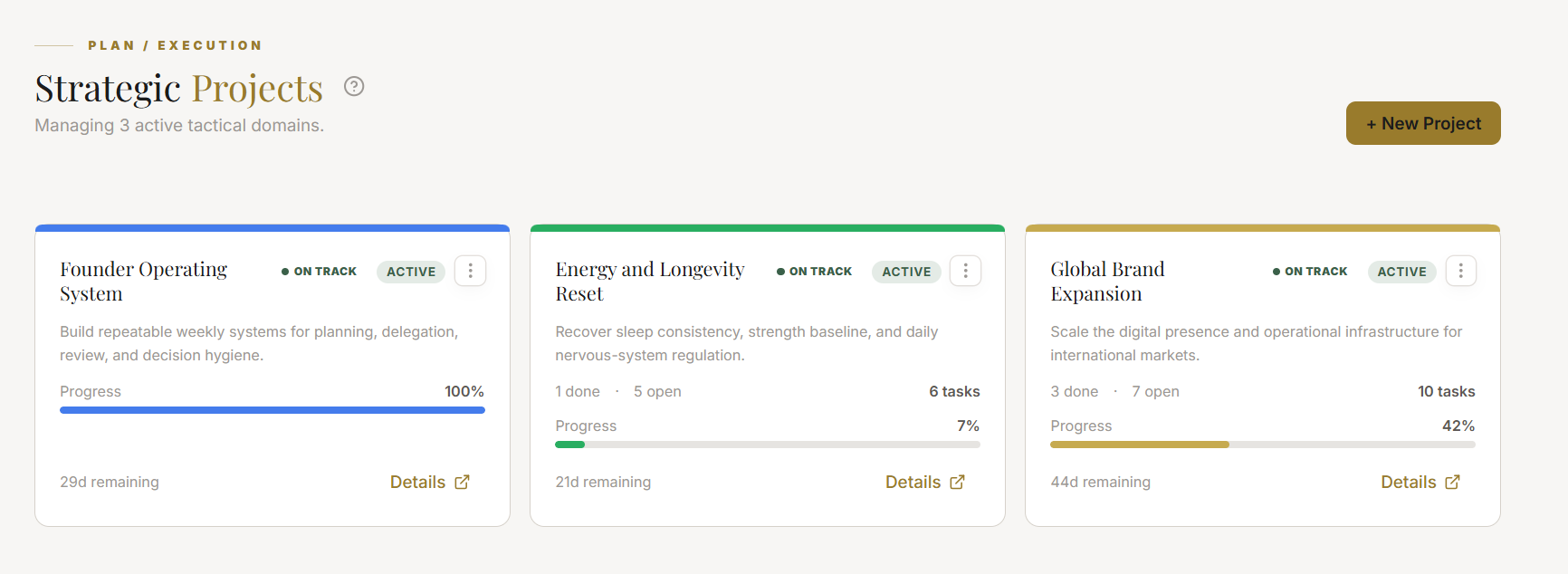
Step 2 — Open the Project Panel Click the Projects tab within the Plan Module. You will see a list of existing projects grouped by health status. Click the + New Project button in the upper right.
Step 3 — Enter the Title and Description Type a clear outcome-oriented title. Write a description that answers: why does this project exist, and what will completion produce?
Step 4 — Set the Target Date Choose a realistic target date using the date picker. Consider your current active project load — the calendar overlay shows you your committed time so you can choose a date that is ambitious but achievable.
Step 5 — Link to a Goal (Optional) If this project supports an active goal, click the Goal Link field and select the relevant goal from the dropdown. You will also be prompted to specify which milestone of that goal this project contributes to.
Step 6 — Add Milestones Click Add Milestone to define your first checkpoint. Give each milestone a name, a target date, and optionally a success criterion. Add 2–5 milestones depending on project length.
Step 7 — Save and Activate Click Create Project. The project appears in your Projects list with an initial Health Status of On Track and an empty Kanban board ready for tasks.
Section ProtocolMilestones: The Backbone of Project Structure
Milestones are the most underused feature in project management — and in JeevanAxis, they are the engine that makes health status meaningful.
TACWhat a Milestone Is Not
A milestone is not a task. "Write the introduction" is a task. "First draft complete and reviewed" is a milestone. The milestone names a state of the world that you will have arrived at — not an action you will perform.
TACMilestone Anatomy
Each milestone contains:
- ▶Name — The outcome state (e.g., "MVP deployed to staging")
- ▶Target Date — When this milestone should be reached
- ▶Completion Status — Pending, In Progress, or Complete
- ▶Linked Tasks — The tasks that, when completed, constitute the milestone
TACCreating Milestones
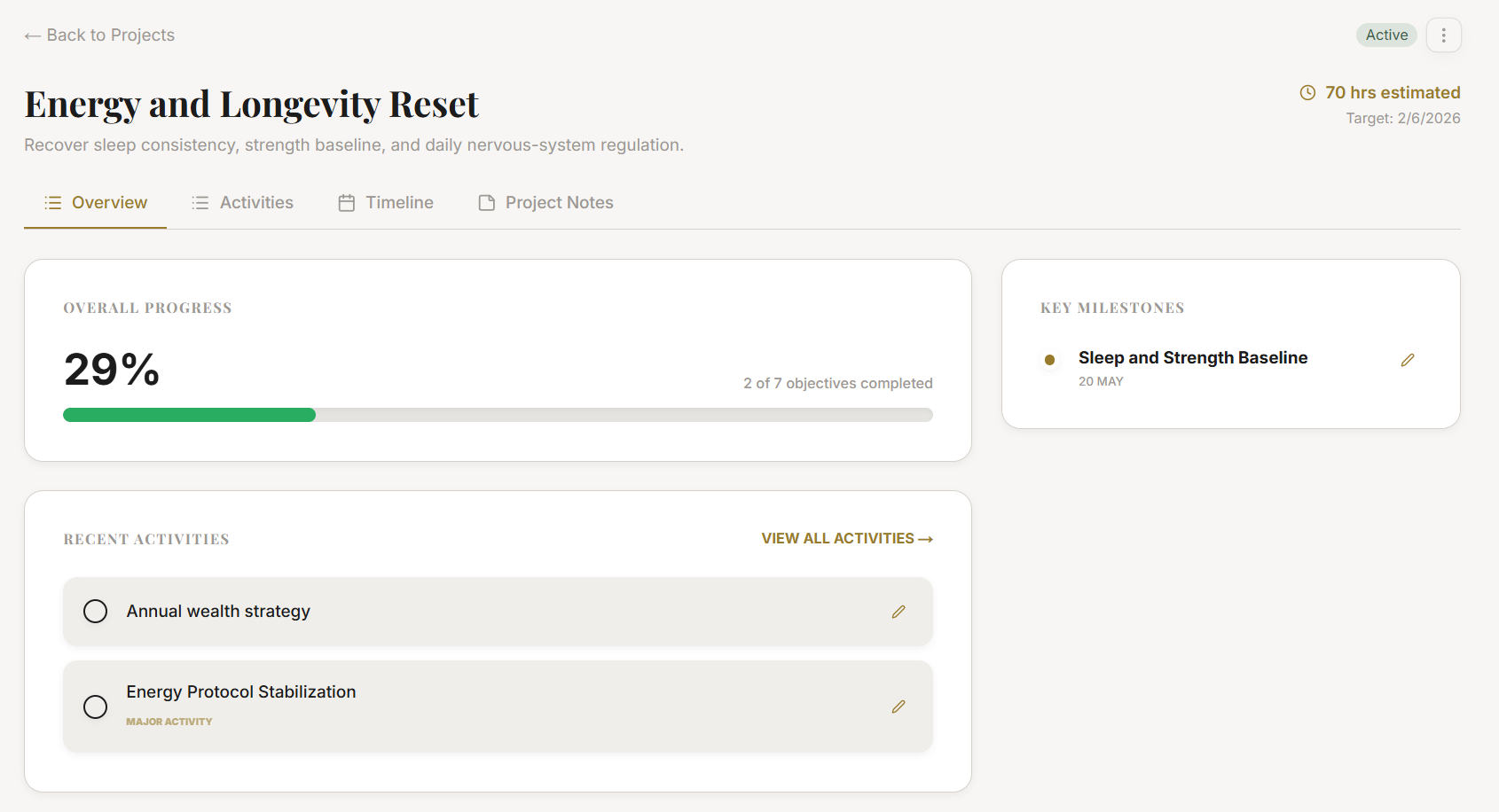
Inside any project, click the Milestones tab. Click + Add Milestone and fill in the name and target date. Once created, you can drag tasks from the project task list into the milestone's task group.
TACLinking Tasks to Milestones
When you create a task inside a project, you can assign it to a specific milestone. Tasks not assigned to a milestone appear in the project's unassigned task pool — useful for administrative or support tasks that don't fit a specific milestone but belong to the project.
TACMilestone Completion
A milestone is marked complete when you manually click Mark Complete — or optionally, when all linked tasks are checked off (this auto-complete behaviour can be toggled in Project Settings). When a milestone completes, the project health recalculates immediately.
Section ProtocolProject Health Status: Your Honest Signal System
The Health Status is the most powerful feature of JeevanAxis Projects because it removes the need for self-deception. You cannot tell yourself a project is "going fine" when the system is showing you a red indicator based on objective data.
TACThe Four Health States
On Track (Green) The project has no overdue milestones, at least one milestone has been completed if the project is past 25% of its timeline, and the current completion percentage is proportional to elapsed time.
At Risk (Amber) One of the following is true: the most recent milestone is overdue by 1–7 days, the task completion rate has dropped significantly in the past 7 days, or the projected completion date (based on current velocity) exceeds the target date by 15% or less.
Off Track (Red) One or more milestones are overdue by more than 7 days, no tasks have been completed in the past 10 days, or the projected completion date exceeds the target date by more than 15%.
Paused (Grey) The project has been manually paused by the user. Paused projects do not generate health alerts and are excluded from weekly review summaries by default.
TACHow Health Is Calculated
The calculation runs every evening as part of JeevanAxis's background sync. It evaluates three signals with equal weight:
- ▶Milestone Adherence — Are milestones being completed on or before their target dates?
- ▶Task Velocity — How many tasks were completed in the past 7 days compared to the 7 days before that?
- ▶Timeline Projection — Given current velocity, will the project finish by the target date?
TACResponding to Health Signals
When your project turns Amber, do not ignore it. Open the project and spend 15 minutes answering: what changed? Is the milestone date still realistic? Do you need to reduce scope or add resources?
When a project turns Red, it warrants a full 30-minute project review: identify the root cause, either reset the target date, remove tasks from scope, or explicitly pause the project with a written note explaining why.
⚠Common Traps
Section ProtocolKanban View: Managing Project Tasks Visually
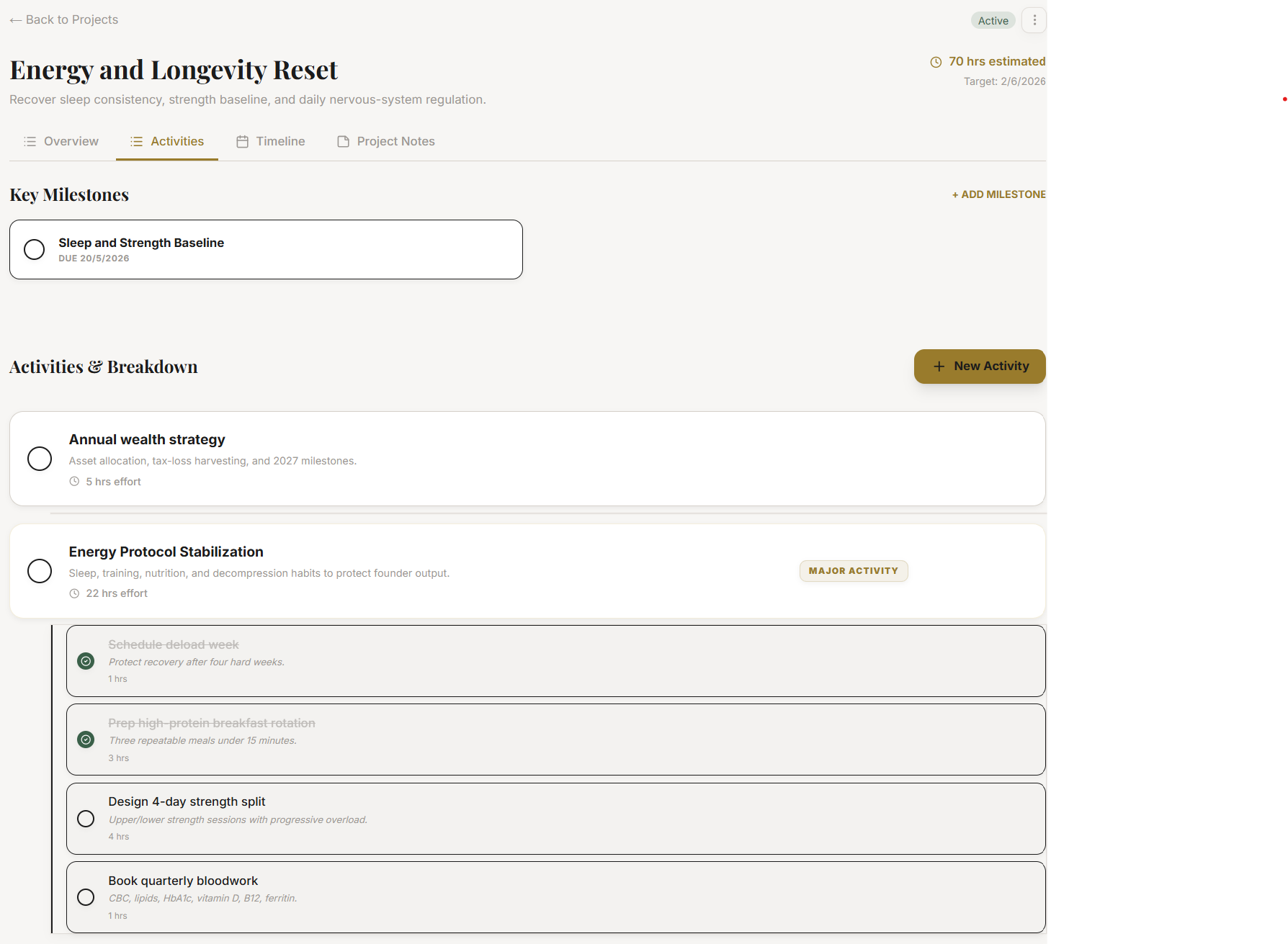
Every project in JeevanAxis includes a built-in Kanban board with three columns: To Do, In Progress, and Done. This is distinct from the global task queue — it shows only the tasks belonging to this specific project.
TACUsing the Kanban Board Effectively
To Do — All tasks that have not been started. When planning a work session, scan this column and move your chosen tasks to In Progress before you begin. This act of intention-setting improves follow-through.
In Progress — Tasks you are actively working on. Keep this column disciplined: no more than 3 tasks in progress at any time. More than 3 signals context-switching, not progress.
Done — Completed tasks move here. At the end of a week, the Done column is your evidence of progress — important psychological data for your weekly review.
TACFiltering the Kanban Board
You can filter the Kanban board by:
- ▶Milestone — See only tasks belonging to a specific milestone
- ▶Priority — Show only High or Critical priority tasks
- ▶Due Date — Surface tasks due in the next 7 days
- ▶Tag — Filter by custom tags you have applied to tasks
TACMoving Tasks Between Milestones
If a task assigned to Milestone 1 is better suited for Milestone 2, drag it from the Kanban card to the milestone selector in the task's detail panel. This recalculates milestone progress instantly.
Section ProtocolProject-Linked Notes: Your Project Knowledge Base
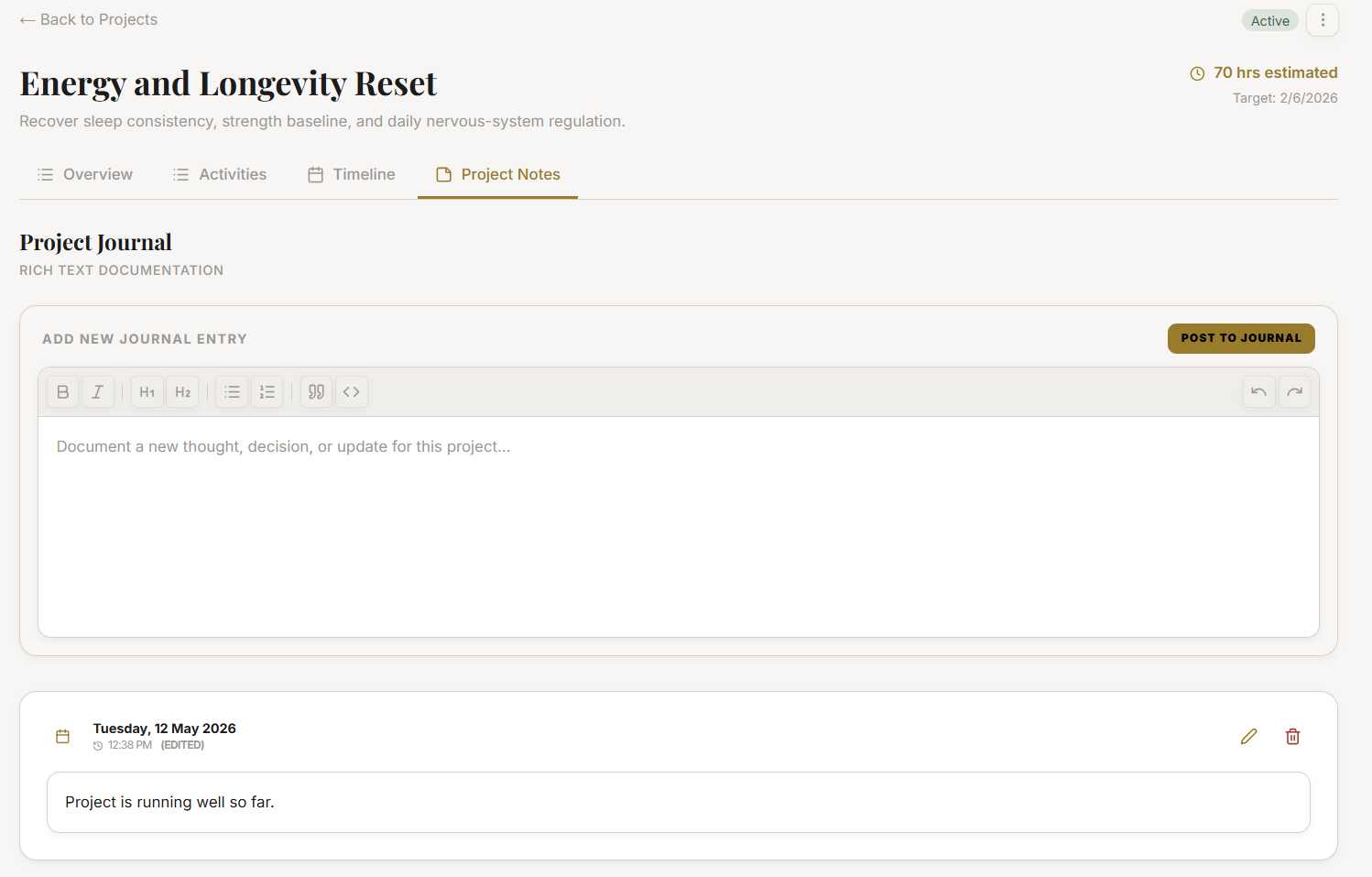
Every project in JeevanAxis includes a Notes section — a lightweight document editor where you can maintain project-specific knowledge, decisions, meeting notes, and context.
TACWhat to Store in Project Notes
- ▶Decision Log — Record why you made key decisions so that future-you understands the reasoning
- ▶Reference Links — URLs, file paths, and resource locations relevant to the project
- ▶Meeting Notes — Summaries of conversations that affected the project
- ▶Blockers Journal — Document obstacles encountered and how they were resolved
- ▶Scope Changes — When you add or remove milestones, record why
TACNotes vs Tasks
A note is not a task. Do not write "Email the client" in the Notes section — that belongs in the task list. Notes are context, not action. When you read a note, you learn something about the project. When you complete a task, you advance the project.
Section ProtocolClosing and Archiving a Completed Project
When all milestones are complete and the project outcome has been delivered, you close the project. This is a deliberate act — a ritual of completion that JeevanAxis takes seriously.
TACThe Closing Flow
- ▶Open the project and verify all milestones are marked complete
- ▶Review any incomplete tasks — either complete them, delete them, or move them to another project
- ▶Write a brief completion note in the Project Notes: what did you deliver, what would you do differently?
- ▶Click Mark as Complete
- ▶The system prompts you to Archive the project — this moves it out of the active project list but preserves all data, notes, and tasks for reference
TACWhat Happens to Linked Tasks
When a project is archived:
- ▶Completed tasks remain visible within the archived project's Kanban
- ▶Incomplete tasks that were not moved are flagged in your task inbox with a note that their parent project has been archived
- ▶Notes are preserved indefinitely and searchable from the global Notes search
TACWhat Happens to the Linked Goal
When a project marked as the final contribution to a Goal Milestone completes, the milestone auto-advances to Complete status and the Goal's progress ring updates. If the project was the last active project linked to a goal, the goal enters Review status — prompting you to either mark it complete or extend it.
✓Project Setup Checklist
Section ProtocolThe Weekly Project Review Ritual
Projects do not manage themselves. Without a weekly review ritual, even the best-structured project drifts into chaos. JeevanAxis's Weekly War Room prompt includes a project review block — use it.
TACThe 15-Minute Project Review Protocol
Each Sunday (or your chosen review day), open each active project and ask:
- ▶Progress check — How many milestones have been completed? Is this proportional to elapsed time?
- ▶Health signal — What is the current health status? What triggered it?
- ▶Next 7 days — Which tasks will advance the next milestone? Mark them as your priority tasks for the week.
- ▶Blockers — Is anything blocked? Name it explicitly in the Project Notes and decide a resolution.
- ▶Scope review — Does this project still deserve to be active, or should it be paused?
This review takes 3–5 minutes per project. For 4 projects, that is 15 minutes — a small investment that prevents weeks of invisible drift.
Reflection Prompts
Executive Summary
▸Projects in JeevanAxis give your complex work a structure that honest progress tracking demands — not just a list of things to do, but a container with milestones, health signals, goal linkages, and a Kanban board that shows you exactly where things stand at any moment.
▸The system works only when you take its signals seriously: respond to Amber before it becomes Red, write milestones as outcome states rather than task folders, and close projects deliberately with a completion note.
▸A well-managed project list — three to five active, each with clear milestones and linked goals — is one of the most powerful planning tools JeevanAxis offers.
▸It turns ambition into a trackable, reviewable, completable arc of work.
Intelligence Pipeline
Set Up Your Goals →
Goals are the containers that give projects their purpose. Learn how to create outcome-oriented goals, structure milestones, and use the progress ring to track life outcomes across all eight categories.
Master the Calendar →
Projects generate tasks, but tasks only get done when they have protected time. Learn how to use the JeevanAxis Calendar to time-block your project work and prevent overcommitment.
Run Your Weekly War Room →
The Weekly War Room is the ritual that keeps your projects honest. Learn the Sunday review protocol that connects your project health status to your next week's priority task list.
Connected Intelligence
Ready to Deploy Your Life OS?
Experience the full power of integrated intelligence. Stop managing apps and start operating your life.
Launch Command Center