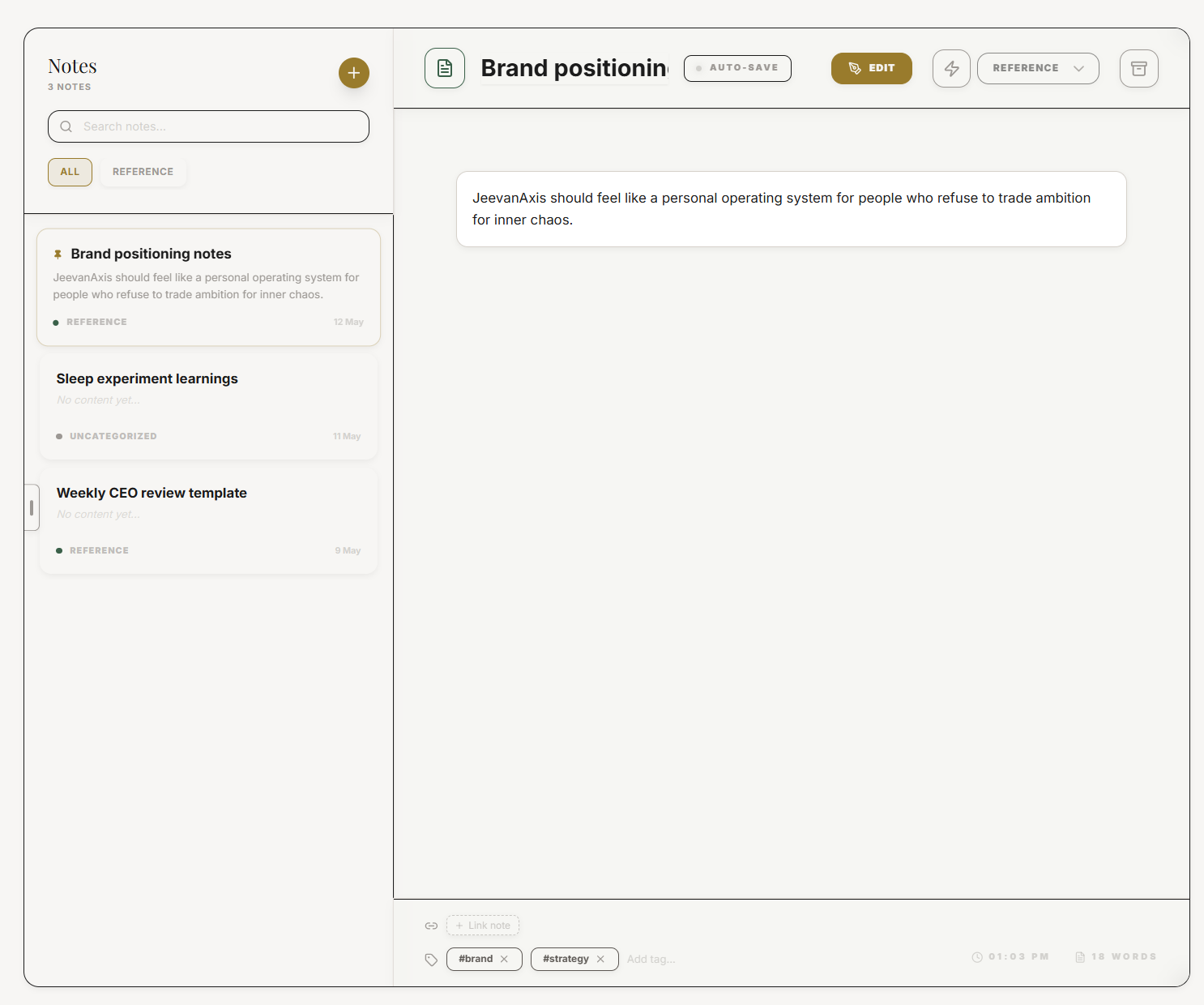
How to Build a Personal Knowledge Base with Notes
Build a linked knowledge system by connecting standalone notes, project-linked notes, and task-linked context — with backlinks, tags, and full-text search via Command Brain.
Section Protocoltitle: "How to Build a Personal Knowledge Base with Notes"
description: "Notes in JeevanAxis are not just text files — they are a linked knowledge base that connects your ideas, meeting notes, research, and project context directly to your tasks, projects, and goals, making your thinking retrievable across time."
category: "Plan Module"
publishedAt: "2026-05-29"
readingTime: "13 min"
tags: ["notes", "knowledge base", "PKM", "backlinks", "organization"]
Operational Directive
Notes in JeevanAxis are not just text files — they are a linked knowledge base that connects your ideas, meeting notes, research, and project context directly to your tasks, projects, and goals. This guide teaches you to build a system of notes that makes your knowledge retrievable, your project context persistent, and your thinking visible across time.
Section ProtocolThe Difference Between a Notes Dump and a Linked Knowledge Base
Most people use notes as a digital equivalent of torn scraps of paper: quick captures that pile up, rarely organized, almost never revisited. A notes dump is a write-only system. Information goes in and almost never comes out in a useful form. The problem is not the notes themselves — it is the lack of connections between them.
A linked knowledge base is fundamentally different. In a linked knowledge base:
- ▶Notes are connected to each other through explicit references (backlinks)
- ▶Notes are connected to the projects, tasks, and goals they relate to
- ▶Information is findable through full-text search, tags, and contextual links
- ▶The knowledge base grows in value over time as connections multiply
Consider the difference in practice:
Notes dump scenario: You take a meeting note with a client decision. Three weeks later, you're writing a project proposal and you need that decision. You vaguely remember taking a note. You scroll through your app, can't find it quickly, and either reconstruct from memory (losing nuance) or ask the client again (losing credibility).
Linked knowledge base scenario: The meeting note is linked to the project. When you open the project, related notes appear in the sidebar. The client decision is one click away. The proposal is richer, faster to write, and more accurate.
This is not a marginal improvement. In knowledge work — where your primary raw material is information — the difference between a notes dump and a linked knowledge base is the difference between a warehouse of randomly stored parts and a well-indexed library.
TACThe Knowledge Accumulation Dividend
There is a compounding effect to a well-maintained knowledge base that reveals itself over months, not days. In month one, your notes feel somewhat useful. In month three, you begin finding connections between notes you wrote weeks apart — an insight from a book note that directly informs a current project decision. By month six, your knowledge base is genuinely thinking with you — surfacing relevant context before you even know to look for it.
This is the knowledge accumulation dividend: the return on the daily investment of capturing and connecting your thinking. It is slow to materialize and then suddenly obvious.
Section ProtocolThree Types of Notes in JeevanAxis
JeevanAxis supports three distinct note types, each with a different relationship structure and purpose. Understanding which type to use for a given capture is the first skill of effective knowledge base management.
TACType 1: Standalone Notes
What they are: Independent notes not attached to any specific project or task. They capture ideas, insights, reading notes, reference material, and thinking that does not yet belong to a specific project.
When to use them:
- ▶Capturing a book insight that might inform future work
- ▶Brainstorming freely without committing to a project context
- ▶Recording a personal reflection or observation
- ▶Drafting an idea you want to develop before knowing where it belongs
How they become powerful: Standalone notes are the raw material of your knowledge base. Their power activates when you start linking them — either to each other through backlinks, or to projects and tasks as relevant context emerges.
TACType 2: Project-Linked Notes
What they are: Notes directly attached to a JeevanAxis project. They appear in the project's sidebar and are accessible to anyone with project access (in team contexts).
When to use them:
- ▶Meeting notes from a project kick-off or status update
- ▶Research notes gathered during project discovery
- ▶Decision logs recording why a key project decision was made
- ▶Reference documents, specifications, or requirements
- ▶Post-mortem notes when a project completes or pivots
Why they matter: Project-linked notes create persistent project context — the memory that survives personnel changes, long gaps in work, and the cognitive fog of context-switching. When you return to a project after a two-week absence, the linked notes are the fastest path back to deep context.
TACType 3: Task-Linked Notes
What they are: Notes attached to specific tasks. They appear in the task detail view.
When to use them:
- ▶Adding context that makes a task self-explanatory to your future self (or a colleague)
- ▶Capturing research or reference material specifically needed to complete the task
- ▶Recording partial progress or a decision made mid-task
- ▶Attaching a meeting note that generated the task
Why they matter: Task-linked notes eliminate the most common cause of task abandonment: loss of context. When you return to a task after days away and you can't remember what you were doing or why, the task feels intimidating. A task-linked note that says "Started this after the Tuesday call with Sarah — she wants draft by next Friday, key constraint is the X requirement" turns a confusing task into a clear resumption point.
Section ProtocolHow to Create a Note: Three Entry Points
JeevanAxis is designed so that capturing a note is never more than two actions away, regardless of where you are in the app.
TACQuick Capture via Command Brain
The fastest way to create any note is via Command Brain — JeevanAxis's system-wide command palette, activated with Cmd+K (Mac) or Ctrl+K (Windows/Android). From any screen:
- ▶Press Cmd+K / Ctrl+K
- ▶Type "New Note" or simply type your note title
- ▶Select "Create Note" from the results
- ▶The new note opens immediately in a modal editor
Quick Capture is optimized for speed: the goal is to get the idea out of your head and into the system before it disappears. You can add formatting, links, and structure after the initial capture. Never let the perfect be the enemy of the captured.
TACDirect Creation in Plan → Notes
For notes that require more deliberate creation — structured templates, linked notes, or longer documents:
- ▶Navigate to Plan → Notes
- ▶Press the + New Note button in the upper right
- ▶Choose your note type: Standalone, Project-linked, or Task-linked
- ▶If Project-linked, select the project from the dropdown
- ▶If Task-linked, search for and select the task
- ▶Begin writing in the rich text editor
TACCreating Notes from Task or Project Detail Views
When viewing a task or project, you can create a linked note directly from the detail view:
- ▶Open any task or project
- ▶Find the Notes section in the detail sidebar
- ▶Press + Add Note
- ▶A new note is created and automatically linked to that task or project
- ▶No manual linking required — the connection is established at creation
Section ProtocolRich Text Editing: The Full Feature Set
JeevanAxis Notes uses a rich text editor that supports the full range of formatting you need for professional knowledge base content.
TACMarkdown Support
All standard markdown is supported and renders in real time:
- ▶
# H1through###### H6heading levels for document structure - ▶
**bold**and*italic*for emphasis - ▶
`code`and```code blocks```for technical content - ▶
-and1.for bullet and numbered lists - ▶
>for blockquotes (useful for capturing verbatim quotes from sources) - ▶
---for horizontal dividers - ▶
[link text](url)for external links
TACHeading Structure
Well-structured notes are more useful notes. A Meeting Note with clear H2 headings (Attendees, Agenda, Decisions, Action Items, Next Steps) is immediately scannable. A Research Summary with H2 headings (Source, Key Finding, Implication, Questions Raised) extracts signal from raw material efficiently.
Invest 30 seconds in heading structure when creating any note longer than a few lines. Future-you will thank current-you every time.
TACInline Formatting for Emphasis
Use bold to mark key decisions, critical constraints, and must-remember information:
""Client confirmed budget is fixed at X and deadline is non-negotiable. All scope changes must come from this constraint."
Use italics for context, nuance, and qualifications. Use code blocks for any technical content — commands, configurations, code snippets — that must be preserved exactly as written.
Section ProtocolLinking Notes to Projects: The Knowledge Anchor
The most powerful use of Project-linked notes is establishing a project knowledge anchor — a comprehensive reference document that captures everything important about a project in one accessible place.
TACCreating a Project Knowledge Anchor
When starting any significant project in JeevanAxis:
- ▶Open the project in Plan → Projects
- ▶Create a new Project-linked note titled "[Project Name]: Master Reference"
- ▶Structure it with the following sections as H2 headings:
- ▶Project Overview: What this project is and why it matters
- ▶Key Stakeholders: Who is involved and what each person needs
- ▶Core Constraints: Non-negotiable constraints (budget, timeline, technology, requirements)
- ▶Key Decisions: A running log of decisions made and the reasoning behind them
- ▶Open Questions: Unresolved questions that need answers
- ▶Key Resources: Links, files, and references relevant to this project
- ▶Lessons Learned: Observations that should inform future similar projects
This Master Reference note becomes the single source of truth for anyone — including future-you — who needs to understand the project quickly.
TACThe Project Sidebar
When you open any project with linked notes, the Project Sidebar shows all notes attached to that project, sorted by last modified date. This gives you an at-a-glance view of the project's knowledge base without needing to search.
Section ProtocolLinking Notes to Tasks: Context That Travels
Task-linked notes solve a specific problem: the loss of context when a task sits dormant for days or weeks between work sessions.
TACThe Context Travel Protocol
When creating or updating a task, get into the habit of asking: "What does my future self need to know to resume this task without friction?" The answer to that question belongs in a task-linked note.
Good task note content includes:
- ▶Why this task exists: The goal or decision that generated it
- ▶Where I left off: The exact state of work when last touched
- ▶Key constraints: What must be true for this task to be "done"
- ▶Relevant references: Links to notes, files, or resources needed to complete it
- ▶Next immediate action: The single next physical action to resume
This is the difference between a task that says "Write proposal" and a task that says "Write proposal" with a note that reads: "Sarah wants draft by Friday. Client's main concern is timeline risk — address this prominently in Section 2. Reference the Master Reference note for all constraints. Stopped mid-way through the Executive Summary — resume there."
Section ProtocolBacklinks: Notes That Reference Notes
Backlinks are the feature that transforms a collection of notes into a true knowledge base. A backlink is created when you reference one note from within another note using the [[Note Title]] syntax.
TACCreating Backlinks
In any note's editor, type [[ and begin typing the title of any other note. JeevanAxis will autocomplete with matching notes. Select the note you want to reference, and a backlink is created.
The referenced note automatically receives a backlink entry — it knows which notes link to it. This bidirectional awareness is what makes the knowledge graph navigable.
TACReading Backlinks
When viewing any note, the Backlinks section at the bottom of the note shows all other notes that link to it, with a brief excerpt of the context around the link. This allows you to navigate from a note to its surrounding knowledge ecosystem without knowing in advance which notes will be relevant.
TACThe Backlink Web in Practice
Imagine you have a note called "Client X: Discovery Findings" from a project kickoff. Over three months, you reference this note in:
- ▶A "Client X: Proposal Draft" note
- ▶A "Client X: Q1 Review" meeting note
- ▶A "Lessons Learned: Discovery Process" standalone note
- ▶A task note: "Revise proposal based on discovery constraints"
The original "Client X: Discovery Findings" note now has four backlinks. Anyone (including future-you) opening it can see the entire web of work that grew from those initial findings. This is institutional knowledge — the kind that normally lives only in one person's head and disappears when they leave.
Section ProtocolTags and Organization System
Tags provide a second organizational axis alongside project and task linkages. While links connect notes to specific contexts (this project, this task), tags connect notes to themes that cut across contexts.
TACEffective Tag Categories
Design your tag system around the questions you'll ask of your knowledge base:
- ▶Type tags:
#meeting-note,#research,#decision-log,#book-insight,#reflection,#template - ▶Status tags:
#draft,#in-progress,#archived,#reference - ▶Domain tags:
#strategy,#technical,#client-communication,#personal-development - ▶Quadrant tags:
#purpose,#security,#vitality,#freedom(aligning notes to the Purusartha framework)
TACTag Discipline
The most common tagging mistake is over-tagging — applying 5-8 tags to every note until tags become meaningless. Use no more than 3 tags per note. If you find yourself wanting more, it is a signal that the note is trying to do too much and should be split into two focused notes.
TACBrowsing by Tag
Navigate to Plan → Notes → Tags to browse all notes sharing a tag. This is particularly useful for:
- ▶Reviewing all meeting notes from the past month: filter
#meeting-noteby date - ▶Finding all decision logs across projects: filter
#decision-log - ▶Reviewing all book insights for a quarterly learning review: filter
#book-insight
Section ProtocolFull-Text Search via Command Brain
The most powerful discovery tool in JeevanAxis Notes is not tags or links — it is full-text search via Command Brain (Cmd+K / Ctrl+K).
TACHow to Search Notes
- ▶Open Command Brain (Cmd+K)
- ▶Type your search query — any word or phrase that appears in a note's title or body
- ▶Filter results by type: select "Notes" to show only note results
- ▶Results appear as you type, ranked by relevance
Full-text search is the safety net that makes the rest of the organizational system matter less: even if you forgot to tag a note or didn't link it to the right project, if you captured the words, they are findable.
TACSearch Behavior
JeevanAxis search indexes note titles, all body content, tag names, and linked entity names (project name, task title). This means you can search for a project name and find all notes linked to that project alongside notes that merely mention it in their body text.
Advanced search operators (type in the Command Brain search field):
- ▶
tag:#meeting-note— search within a specific tag - ▶
project:"Project Name"— search within a specific project's notes - ▶
created:2026-05— search notes created in a specific month - ▶
type:note keyword— restrict results to notes only
Section ProtocolThe Personal Knowledge Base Workflow: Capture → Organize → Connect → Retrieve
The entire JeevanAxis Notes system can be understood through a four-stage workflow. Mastery of each stage and the transitions between them is what separates a functional knowledge base from an extraordinary one.
TACStage 1: Capture
The cardinal rule of Capture: Lower the friction to near zero, and optimize for completeness over organization. A perfectly organized note you didn't capture is worth nothing. An imperfectly formatted note that captures the idea is worth everything.
Use Cmd+K Quick Capture for any note where speed matters. Come back and organize it within 24 hours if it needs structure.
TACStage 2: Organize
Organization happens after capture, not during. When you have a quiet moment — during a weekly review, at the end of a working day, or during a deliberate "note organization" time block — open recent captures and:
- ▶Give them proper heading structure
- ▶Choose the right note type and make any needed linkages
- ▶Apply 1-3 tags
- ▶Delete redundant or low-value content
Five minutes of organization per day keeps your knowledge base from becoming a well-intentioned notes dump.
TACStage 3: Connect
Connection is the highest-leverage action in knowledge base management. Every backlink you create, every project or task linkage you establish, increases the value of both the source and destination note.
When reviewing a note, ask: "What else in my knowledge base relates to this?" Then create the link. This five-second action creates a connection that might surface a crucial insight months from now.
TACStage 4: Retrieve
Retrieval is the payoff — the moment the knowledge base earns its investment. Effective retrieval uses three paths:
- ▶Direct search (Cmd+K, type a keyword) — fastest for known topics
- ▶Tag browsing — best for thematic review (all meeting notes, all book insights)
- ▶Backlink navigation — best for discovering unexpected connections
Develop the habit of searching before creating: before writing a new note, search for existing notes on the topic. You'll often find that you already captured relevant material — and linking it into the new note instead of duplicating it makes both notes richer.
Section ProtocolRecommended Note Templates
Templates accelerate both capture and organization by providing pre-built heading structure for common note types. JeevanAxis includes default templates and allows custom template creation.
TACTemplate 1: Meeting Note
## Meeting: [Title] — [Date]
**Attendees**:
**Purpose**:
## Agenda Items Covered
## Key Decisions Made
## Action Items
- [ ] [Action] — [Owner] — [Due date]
## Open Questions
## Next Meeting
TACTemplate 2: Project Kickoff Note
## Project: [Name] — Kickoff Note — [Date]
**Project Goal**:
**Success Criteria**:
**Deadline**:
**Budget or Constraints**:
## Key Stakeholders
## Scope: In Scope
## Scope: Out of Scope
## Key Risks
## Open Questions and Dependencies
## First Milestone Target
TACTemplate 3: Research Summary
## Research: [Topic] — [Date]
**Source**:
**Relevance**:
## Key Findings
## Surprising or Counterintuitive Points
## Implications for Current Work
## Questions This Raises
## References for Further Reading
TACTemplate 4: Weekly Insight Note
## Weekly Insight — Week of [Date]
## What I Learned This Week
## What Worked and Why
## What Did Not Work and Why
## One Principle to Remember
## How This Connects to [Backlink to goal or project]
Accessing Templates: In Plan → Notes, press + New Note, then select Use Template. Choose from the default templates or create custom templates via Settings → Notes → Templates.
⚠Common Traps
✓Personal Knowledge Base Setup Checklist
Reflection Prompts
Executive Summary
▸Notes in JeevanAxis are not a filing system — they are the memory layer of your entire productivity ecosystem.
▸By creating three types of notes (Standalone, Project-linked, and Task-linked), organizing them with minimal but consistent tags and headings, connecting them through backlinks that build a navigable knowledge graph, and retrieving them through Command Brain full-text search, you transform your captures into a living knowledge base that compounds in value over time.
▸The four-stage workflow — capture, organize, connect, retrieve — applied consistently, produces a knowledge base that actively assists your thinking rather than passively storing it.
▸Combined with recommended templates for meetings, project kickoffs, research, and weekly insights, Notes becomes the connective tissue that makes every other JeevanAxis module richer, faster, and more precise.
Intelligence Pipeline
Master the Focus Engine →
Learn to use task-linked notes as instant context-loading mechanisms — so every Focus Engine session starts with complete clarity about exactly where you left off and what you need to accomplish.
Run Your Weekly War Room →
Discover how Weekly Insight notes and project knowledge anchors feed your War Room's Goal Review and Challenge Analysis, making each Sunday review faster and more strategically precise.
Use Command Brain Effectively →
Go deep on the Command Brain's full capabilities — from note search and task creation to goal navigation and cross-module shortcuts — and master the fastest interface in JeevanAxis.
Connected Intelligence
Ready to Deploy Your Life OS?
Experience the full power of integrated intelligence. Stop managing apps and start operating your life.
Launch Command Center