How to Use the Today Dashboard Control Panel Widgets
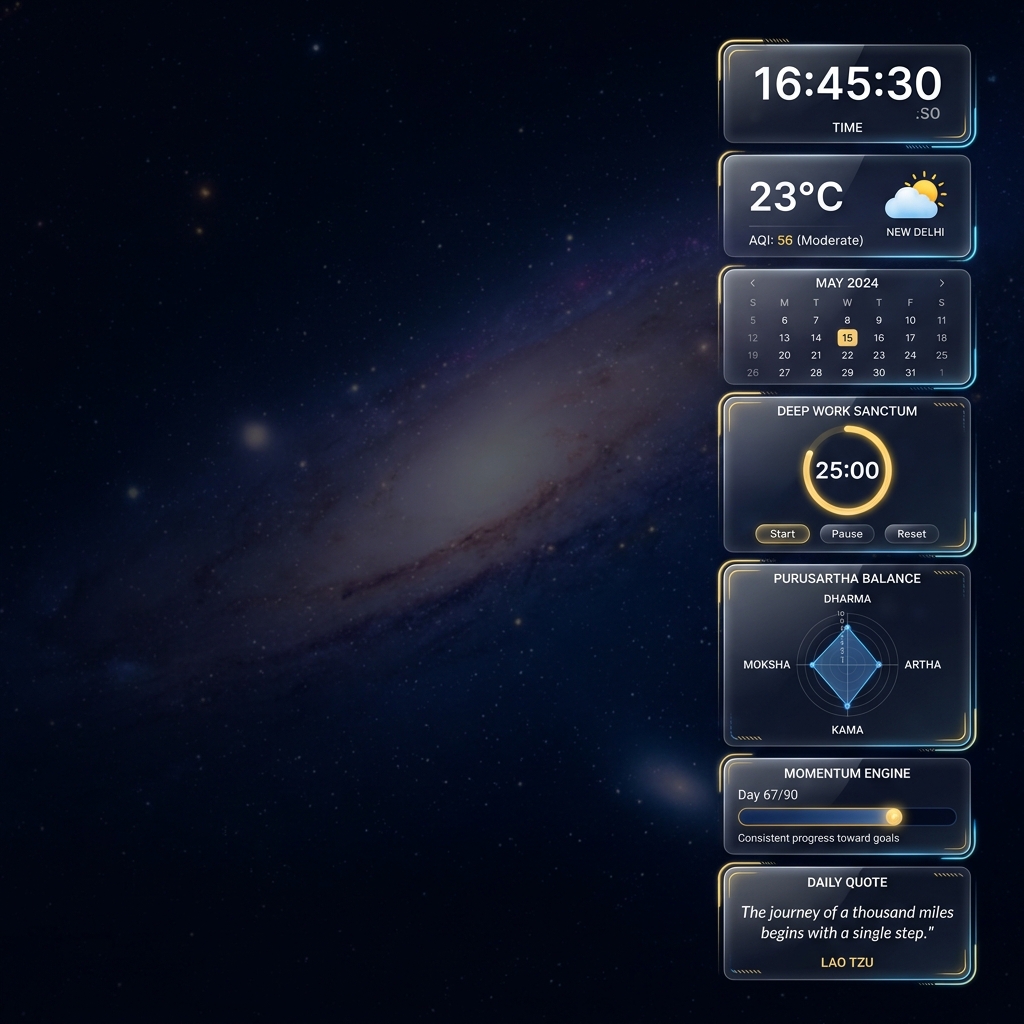
A complete guide to all seven Control Panel widgets — Digital Clock, Weather, Chronos Timeline, Deep Work Sanctum with Shield Mode, Mini Calendar, Holistic Balance Radar, and Momentum Engine.
How to Use the Today Dashboard Control Panel Widgets
Operational Directive
The Control Panel is the persistent right sidebar of your Today Dashboard — seven purpose-built widgets that provide real-time context, deep work infrastructure, and strategic visibility without requiring you to leave the command center. This guide teaches you what each widget does, how to configure it, and how to integrate it into your daily operational rhythm.
Section ProtocolWhat Is the Control Panel?
The Control Panel is a vertical stack of seven widgets that remains visible on the right side of your Today Dashboard at all times. Unlike the main dashboard content — which is contextual and changes based on your data — the Control Panel widgets are always present and always live.
This design is deliberate. Your strategic context (where you are in your 90-day cycle, what time it is, what the weather is outside) should always be visible as a background layer while you execute your daily tasks.
Section ProtocolWidget 1: The Digital Clock
The most understated widget but the one you reference most frequently. The Digital Clock displays:
- ▶Real-time HH:MM:SS — updated every second
- ▶Timezone-aware — reflects your configured timezone from Settings → Profile
- ▶Day of week and full date — below the clock face
Why it matters beyond just telling time: The Digital Clock creates temporal anchoring — a constant awareness of how much of your day has elapsed. When you can see in real-time that it is 14:37 and you haven't started your Q1 task yet, that visibility creates urgency that a hidden phone timer does not.
Configuration:
- ▶Set your timezone in Settings → Profile → Timezone (19 options including all major Indian and global timezones)
- ▶The clock auto-adjusts for DST in applicable timezones
Section ProtocolWidget 2: The Weather Widget
The AQI indicator is the most operationally useful part of this widget. On high-pollution days (AQI 4–5), the system recommends indoor alternatives when you attempt to log outdoor exercise. This is a small but meaningful integration between environmental awareness and your Grow module data.
How to edit your location:
- ▶Click the location text below the weather data
- ▶Type your city name
- ▶The widget saves and refreshes automatically
Section ProtocolWidget 3: The Chronos Timeline
The Chronos Timeline is a tab-toggle widget with two views:
TACRoutines Tab
Displays your active routines for today with completion toggles for each activity. Instead of navigating to Grow → Routines, you can check off routine activities directly from the sidebar.
How to use:
- ▶Your morning routine activities appear automatically when you open the dashboard before noon
- ▶Toggle each activity as you complete it in real life
- ▶The completion data syncs to your Vitality Score calculation
TACCalendar Events Tab
A chronological list of today's scheduled events — pulled from your Plan module calendar.
Section ProtocolWidget 4: The Deep Work Sanctum (Most Powerful Widget)
TACUnderstanding Shield Mode
Shield Mode is not a simple full-screen toggle. When activated:
- ▶The background turns pure black — eliminating all visual noise from the interface
- ▶The sidebar collapses — removing all navigation distractions
- ▶The only visible elements are the timer ring, the remaining time, and the task you designated for the session
- ▶Notifications are visually suppressed — the system does not block system notifications, but the black environment reduces the psychological pull to check them
How to use the Deep Work Sanctum:
- ▶Identify a specific Q1 or Q2 task you will work on
- ▶In the task's Focus Engine (from the Plan module), or directly from the Sanctum widget, set your session duration (25, 50, or 90 minutes are recommended)
- ▶Press Play
- ▶Activate Shield Mode immediately
- ▶Do not pause until the session is complete
Focus Session Logging: Completed sessions are automatically synced to the relevant task's actual hours, updating your Plan module analytics without requiring manual entry.
Section ProtocolWidget 5: The Mini Calendar
The Mini Calendar is the only widget that is culturally context-aware. Indian national holidays are marked automatically, and Hindu festivals from the Panchang are visible as colored indicators, allowing you to plan your week with awareness of culturally significant days.
Click any date to see the events planned for that day.
Section ProtocolWidget 6: The Holistic Balance Radar
This is the most strategically important widget in the Control Panel — and the most frequently ignored.
The Holistic Balance Radar displays a 4-quadrant radar chart showing your Purusartha scores — derived from your most recent weekly review:
The critical insight this widget provides: Most ambitious people are excellent in one or two quadrants and systematically neglecting the others. A person who scores 85 in Dharma (productivity), 75 in Artha (finance), 30 in Kama (vitality), and 20 in Moksha (inner freedom) has a structural imbalance that will eventually create a health or psychological crisis.
The radar makes this imbalance visible every single day — which creates the pressure needed to allocate attention to neglected domains before they become crises.
How to improve a weak quadrant:
- ▶Low Dharma → complete more tasks, start a Weekly War Room
- ▶Low Artha → log transactions, set a budget, build an emergency fund
- ▶Low Kama → log sleep, exercise 3x this week, journal daily
- ▶Low Moksha → start a 90-day Transform cycle, complete a Balance Wheel assessment
Section ProtocolWidget 7: The Momentum Engine
The Momentum Engine widget serves one purpose: psychological anchoring to your transformation timeline. Seeing "Day 47 of 90" every time you glance at the sidebar creates a daily reminder that you are in the middle of a specific, finite commitment.
This is more motivationally effective than open-ended habit tracking because:
- ▶It shows progress in absolute terms (Day 47 vs. abstract percentages)
- ▶The 90-day boundary creates urgency without pressure
- ▶Seeing "Day 47" and having done nothing in the Transform module today feels more costly than not seeing it at all
If no active cycle exists, this widget shows a prompt to start your first 90-day cycle.
⚠Common Traps
✓Control Panel Configuration and Usage Checklist
Reflection Prompts
Executive Summary
▸The Control Panel is seven purpose-built widgets providing real-time operational context from the right sidebar of your Today Dashboard.
▸The Digital Clock and Weather Widget provide environmental awareness.
▸The Chronos Timeline surfaces routines and events without requiring navigation.
▸The Deep Work Sanctum with Shield Mode is the most powerful focus tool in the application.
▸The Mini Calendar provides culturally-aware time planning.
▸The Holistic Balance Radar is the most strategically important widget — a daily mirror showing whether your energy is flowing evenly across all four dimensions of human flourishing.
▸The Momentum Engine anchors you to your 90-day transformation timeline.
Intelligence Pipeline
Open Your Today Dashboard →
Review all seven Control Panel widgets and configure any that need your location or timezone.
Start a 90-Day Transform Cycle →
Activate the Momentum Engine and Balance Radar by starting your first transformation cycle.
How to Use the Hindu Panchang →
Explore the cultural calendar integration that makes the Mini Calendar uniquely Indian-aware.
Connected Intelligence
Ready to Deploy Your Life OS?
Experience the full power of integrated intelligence. Stop managing apps and start operating your life.
Launch Command Center